Top Lightroom Mobile Presets for Fast, Clean Photo Editing
Editing on your phone has never been more powerful. With Lightroom Mobile, you can turn a simple snapshot into a clean, polished photo in seconds — but only if you use the right presets. The problem is the same as on desktop: thousands of packs, mixed quality, confusing names, and inconsistent styles.
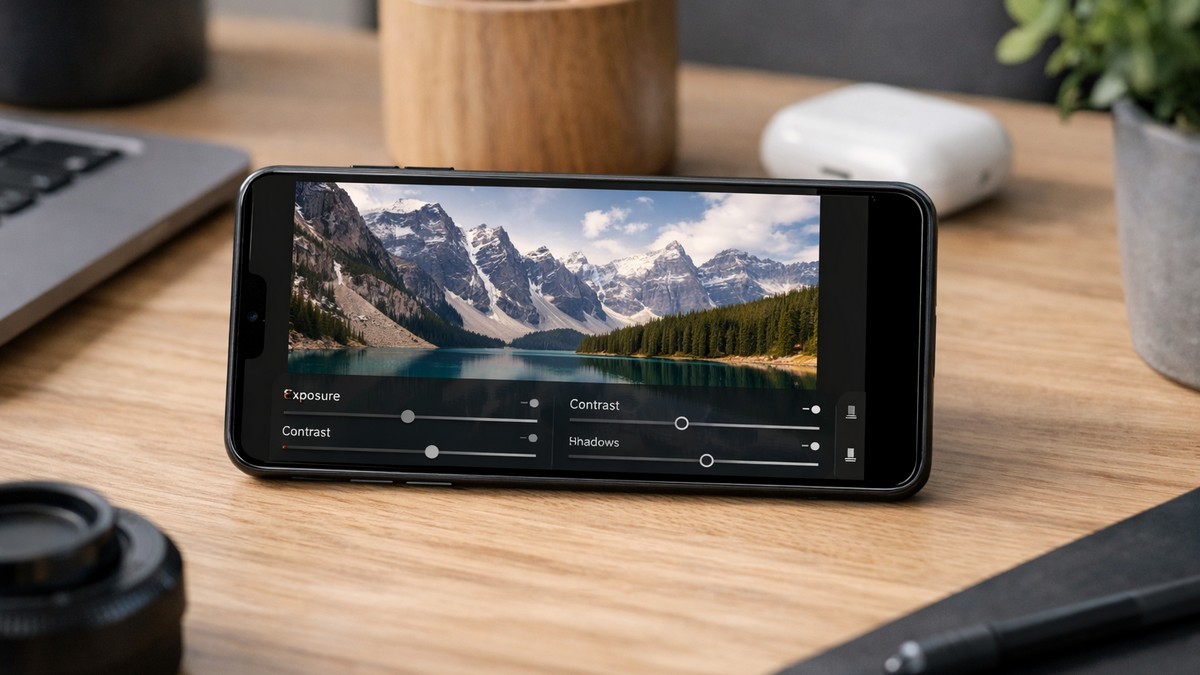
This guide breaks everything down into practical steps so you can choose mobile presets that actually improve your photos instead of giving them a strange color cast or heavy, unrealistic contrast.
LIGHTROOM PRESETS
If you want to level up your photo editing and color grading, I’ve put together a page with my favorite presets — the ones that actually work — plus exclusive discounts. Open it in a new tab and save it for later, so you always have a go-to place for reliable tools and inspiration.
FIND YOUR STYLEWhy Mobile Presets Are Essential in 2026
Most people edit on their phones now — not because they’re beginners, but because smartphones are fast, lightweight, and always with you. Even professionals use mobile presets for quick edits on the go.
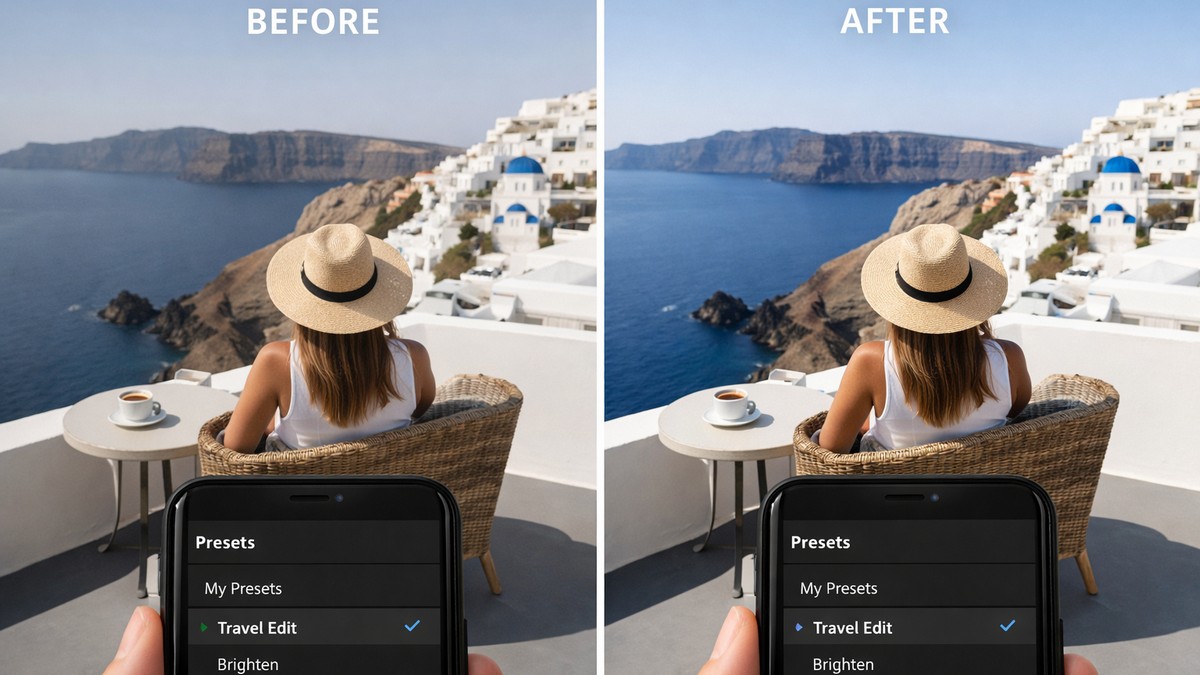
Here’s why mobile presets matter today:
- they save time when editing large sets
- they keep your Instagram or portfolio consistent
- phones handle RAW better than ever
- travel creators rely on fast workflow
- presets help avoid over-editing on tiny screens
Good mobile presets don’t feel heavy. They give you a clean, natural, refined look in one tap.
Types of Mobile Presets You Should Know
Before choosing a pack, it helps to know what style you’re aiming for. Each preset category works best for a specific purpose.
1. Mobile Portrait Presets
Designed to improve skin tones, soften harsh highlights, and keep natural warmth.
Best for: selfies, portraits, lifestyle bloggers, creators.
2. Travel & Outdoor Mobile Presets
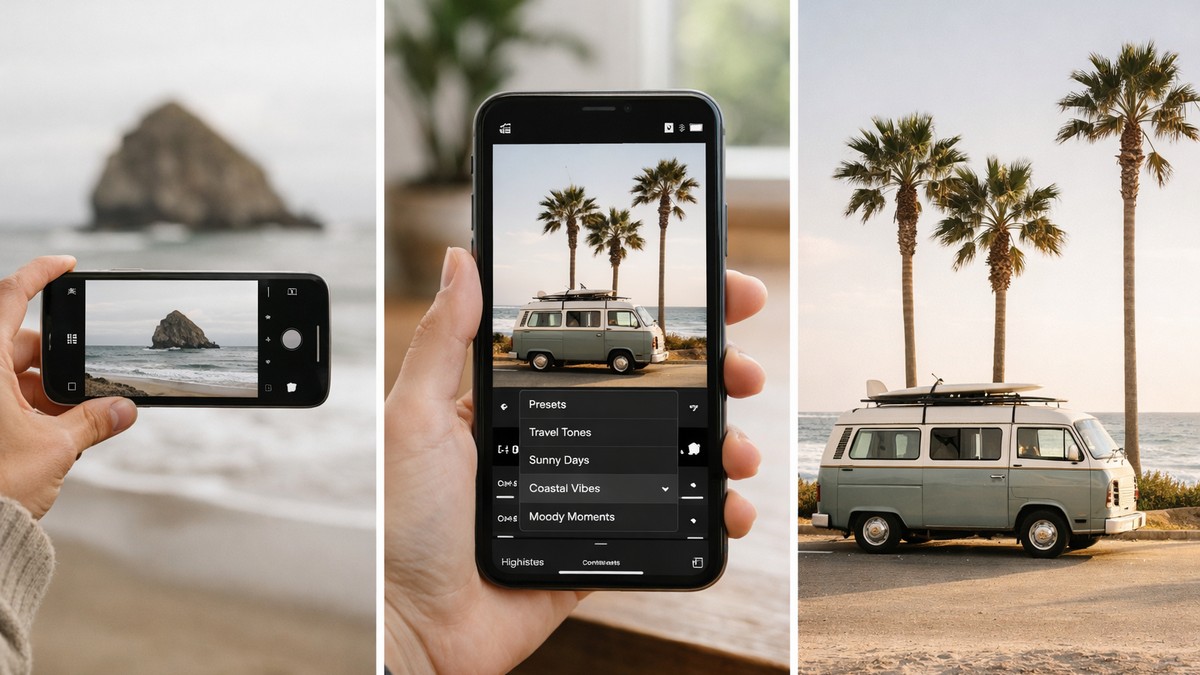
Boost landscapes, skies, and textures while preserving natural tones.
Best for: vacations, city shots, road trips.
3. Clean Minimal Mobile Presets
Bright whites, soft shadows, modern aesthetic — great for social media.
Best for: product photography, flat lays, everyday moments.
4. Moody Mobile Presets
Matte blacks, deep greens, and subtle contrast for an atmospheric look.
Best for: lifestyle, portrait work, cinematic feeds.
5. Mobile Film Presets
Muted tones, soft grain, pastel hues, vintage color science.
Best for: storytelling, creative projects.
LIGHTROOM PRESETS
If you want to level up your photo editing and color grading, I’ve put together a page with my favorite presets — the ones that actually work — plus exclusive discounts. Open it in a new tab and save it for later, so you always have a go-to place for reliable tools and inspiration.
FIND YOUR STYLEBest Mobile Presets for Lightroom in 2026 (By Style)
Let’s look at the most practical and reliable types of mobile presets creators use today.
Clean Everyday Preset
Your “go-to” preset for 80% of photos.
Characteristics:
- soft contrast
- neutral colors
- natural skin tones
- light sharpening
Perfect for Instagram feeds that aim for clarity and consistency.
Travel Vibrant Preset
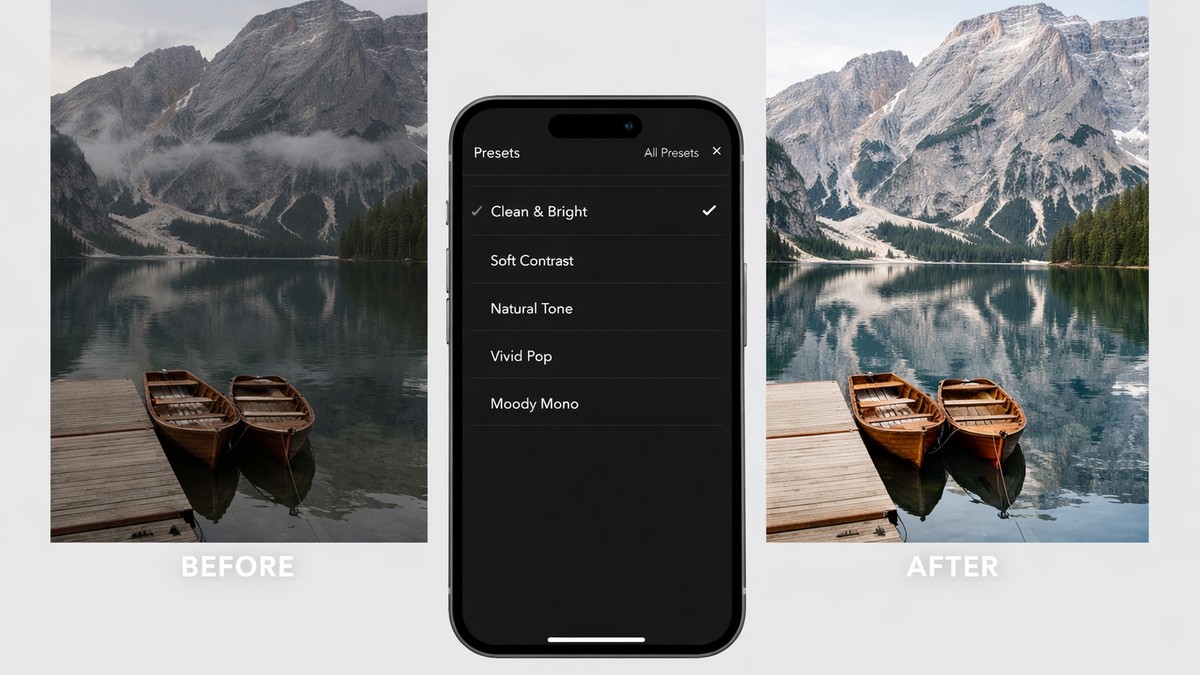
Designed to make outdoor photos pop without looking artificial.
Characteristics:
- boosted blues and greens
- improved dynamic range
- clean highlights
- minimal saturation shifts
Works great on beach, city, and nature photos.
Soft Portrait Preset
The key is natural skin tones.
Characteristics:
- warm highlights
- reduced redness
- soft matte finish
- gentle smoothing
Ideal for creators who want a polished but natural look.
Moody Cinematic Preset
For darker, dramatic tones.
Characteristics:
- desaturated greens
- matte blacks
- calm highlights
- film-like depth
A favorite among photographers who love atmospheric storytelling.
How to Use Mobile Presets the Right Way
Even the best preset won’t fix everything. But with a few quick adjustments, your edits become clean and professional.
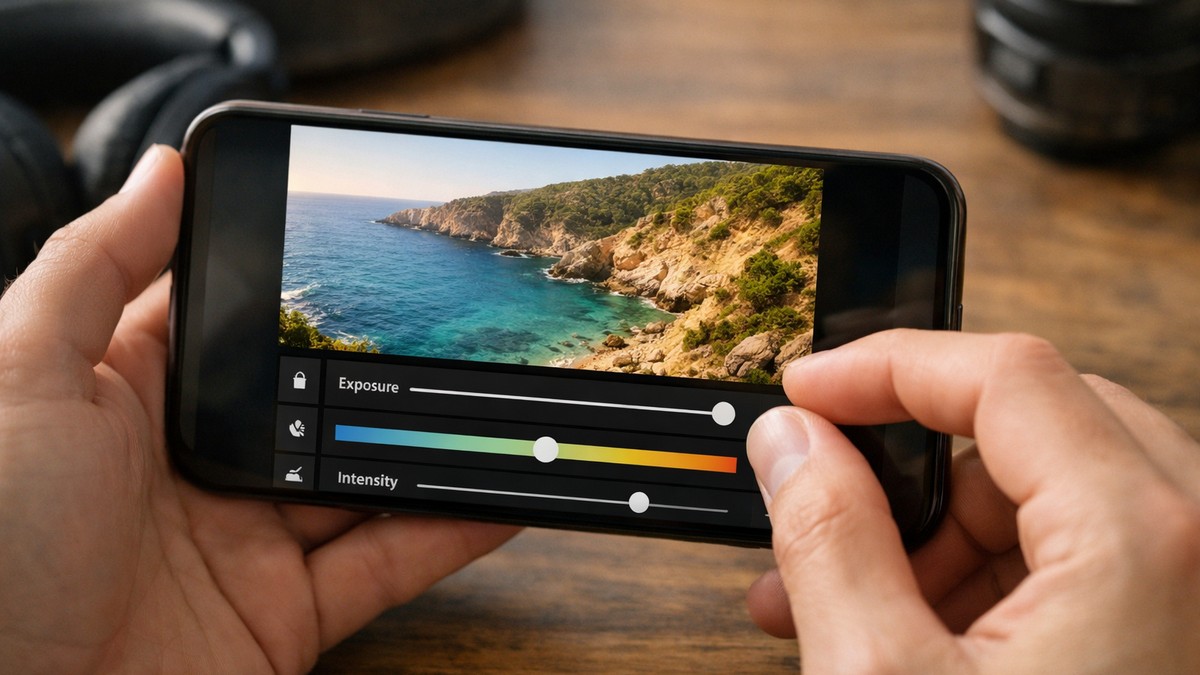
1. Adjust Exposure Before Everything Else
Mobile photos often expose too bright. Fixing that first helps the preset behave correctly.
2. Correct White Balance After Applying the Preset
Warm/cool shifts on mobile screens are more noticeable.
3. Reduce the Intensity if Needed
Lightroom Mobile makes this easy with the “Amount” slider.
4. Keep Colors Natural
Oversaturation is the biggest mistake mobile editors make.
5. Use the Same Preset for a Whole Set
This is how you build a consistent Instagram or portfolio style.
Mobile Presets vs Desktop Presets: What’s the Difference?
Technically, both can create the same look. But mobile presets are designed to work on:
- smaller dynamic range
- JPEG and HEIC files
- smartphone sensors
- mobile-friendly contrast curves
- faster editing workflow
Desktop presets assume advanced RAW files from a camera.
Mobile presets assume speed and simplicity.
If you mostly edit photos for social media, mobile presets are enough.
Are Free Mobile Presets Worth It?
Free presets can help you experiment, but they often:
- push colors too aggressively
- break skin tones
- flatten contrast
- fail on mixed lighting
- work only for one specific scene
If you want predictable results, you’ll eventually want well-balanced presets with multiple variations.
Final Thoughts: Which Mobile Presets Are Truly the Best?
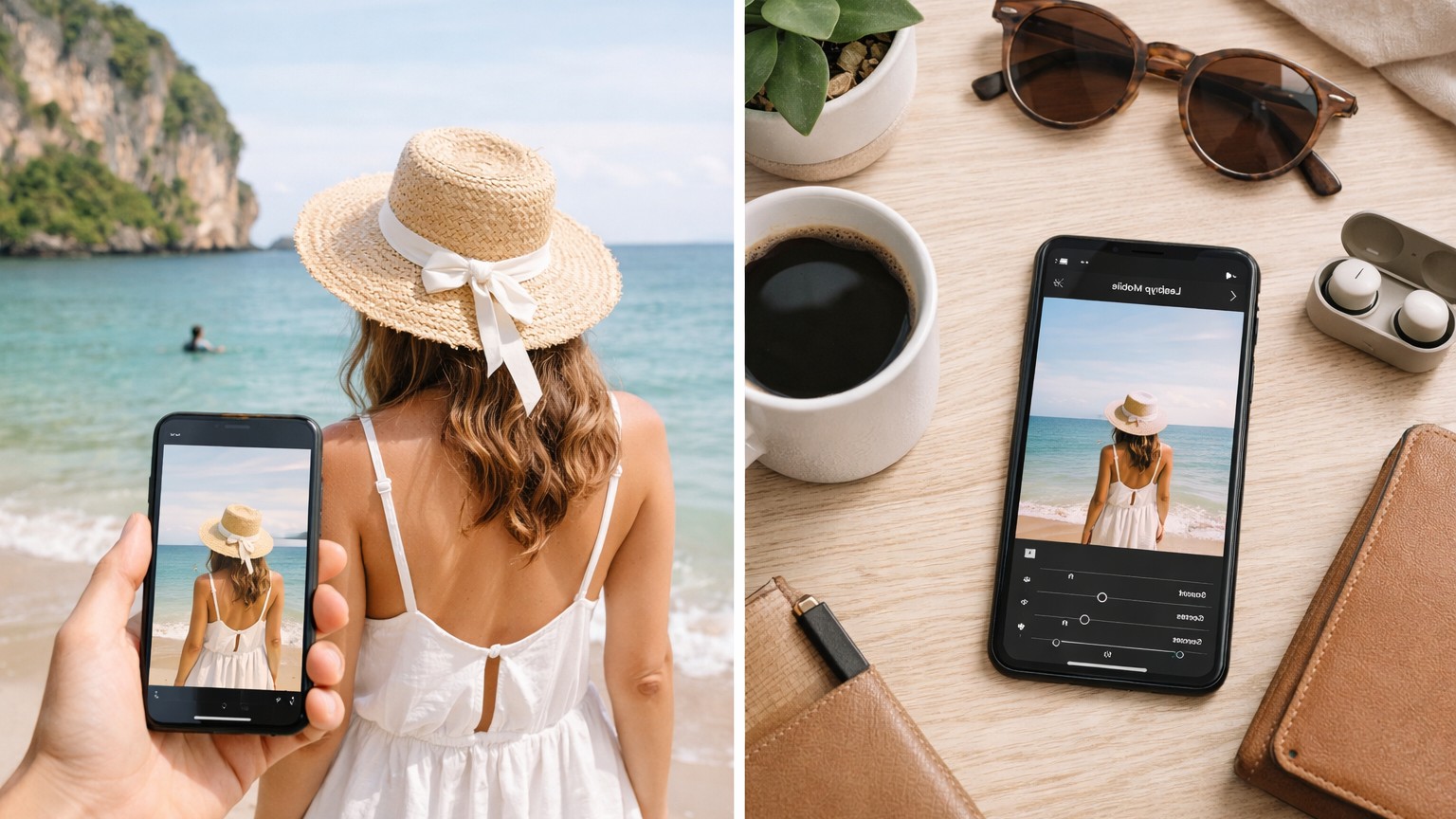
The best mobile presets for Lightroom are:
- simple
- natural
- easy to adjust
- built for real-world lighting
Your ideal setup:
- one clean everyday preset
- one portrait preset
- one travel preset
- one moody preset for storytelling
With just these, your entire mobile workflow becomes faster, cleaner, and more consistent — and your photos finally get that polished look people recognize instantly.
LIGHTROOM PRESETS
If you want to level up your photo editing and color grading, I’ve put together a page with my favorite presets — the ones that actually work — plus exclusive discounts. Open it in a new tab and save it for later, so you always have a go-to place for reliable tools and inspiration.
FIND YOUR STYLE